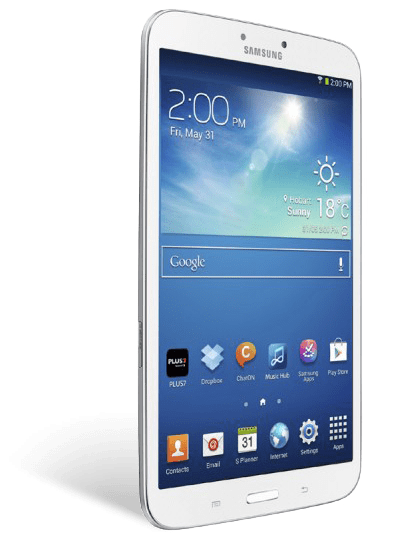
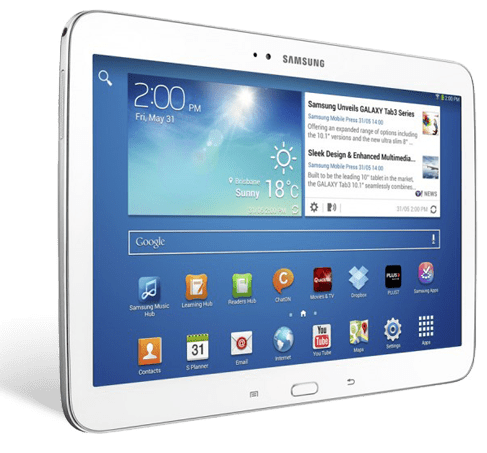
Samsung Galaxy Tab2 7.0 Tablet

Superseded by the new Samsung Galaxy 3 range

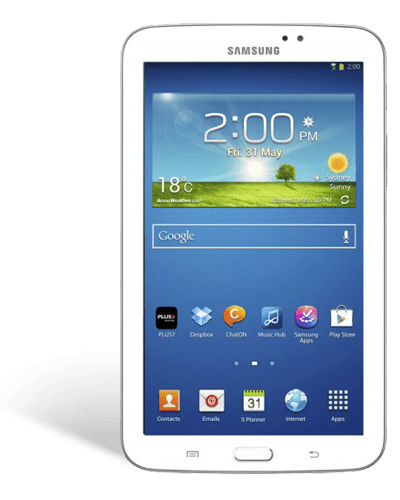
The new Galaxy Tab2 7.0 is now in stores, and we’ve got one here to see what’s in the box and take a closer look at Samsung’s latest 7 inch Android tablet offering.

When we lift the lid off the box, we see the Tab2, with its plastic protective sticker. Lifting up the cardboard Tab, we can see the power supply, australian adapter, and USB cable. Over here we have the quick start guide and underneath is a set of personal headphones with different sized ear buds to help fit most ears.

The Tab2 7.0 weighs in at only 345 grams, is very easy and comfortable to hold in one hand, and is 10.5 millimeters thin. The natural way to hold this device is in the portrait mode.

It keeps its ports to a minimum, with the proprietary connection underneath used for both USB and PC connection, and for recharging via the power supply. There’s no buttons on either side, and the top area contains the power button, volume toggler, microSD card slot and headphone jack.

The back of the unit contains a 3 megapixel camera, and the front has a VGA camera for video chat services. At the front we also find the speakers for a front firing audio experience. As we know most tablets have the speakers at the bottom or at the back, so it’s good to see these have been placed where it makes most sense.

The screen is a 7 inch 1024 by 600 LCD, and is powered by a 1GHz dual core processor. It uses N wireless for fast internet access and Bluetooth for connection to keyboards and other wireless devices.

Samsung have made a few tweaks to the Android 4 operating system to make it easy to find and consume content, as well as commonly used apps.For example, the Tab2 7.0 allows you to unlock your device through face recognition instead of a password.

The S suggest app looks at popular apps on the Google Play network and suggests hot apps for you to try based on your app usage. You can even log in via facebook to see if your friends are suggesting or liking any apps. It’s another way to discover content and apps that you may not have otherwise. The S suggest also filters the apps to ensure they are compatible with your device.

All share play is another app that lets you take advantage of any DLNA-compatible device in your home. For example, you can push Tab2 movies to your big screen TV, or watch content that is on your PC.

Samsung hubs help you manage your content into easy to remember areas. Games Hub for gaming, Readers Hub for eBooks, and Music Hub for music.

Samsung’s Live Panel reveals commonly used tools for instant access no matter what you’re doing, like calculator, alarm, music player and task manager, making it even easier to multitask.

Being a Google Android device, you can customise your home page with widgets to deliver live feeds of your choice, such as weather, news, email and finance updates right there on the screen.

Audio and video format support is also quite extensive, with audio in MP3, FLAC, WAV and WMA, and video in MP4, WMV, MKV and AVI among the formats that can be played back without a third party app.

Samsung also include a heap of localised content as well, such as Channel 10, Reading Eggs, Quickflix, Good Food Guide and Magshop which has access to a huge range of Australian digital magazines. Of course, there is access to the Google Play marketplace as well for your own choice of apps.

The new Samsung Tab2 7.0 makes it easy and fun to consume your favourite content, and with heaps of Australian produced content and smarts to use with your existing devices at home, it’s a great option for your mobile lifestyle.

So come on in to your nearest Bing Lee store or purchase online right now.
Acer w510 Review Video

Transcription: The Acer Iconia W510 PC is the latest Windows 8 Tablet from Acer. Let’s unbox and have a close look at this mobile device.

Lets take the lid off and see what we have inside. The large upper compartment holds the protective leather pouch to use when you’re travelling. Beneath that is some documentation and the the Iconia W510 wrapped in plastic.Lifting the tablet out, there is another small box which contains a quick start guide and a cleaning cloth. The box to the side of the tablet contains the power supply, a micro to full USB adapter and a HDMI to VGA adapter.

The Iconia W510 is well designed with a white frame and powdered metal finish on the back. It weighs just five hundred and eighty grams and 9 millimeters thin.

Taking a look around the device we find a speaker on this side. On the top we have a headphone output, a lock switch and the power button. On the other side we have a mic, volume toggle, HDMI output, micro USB and micro USB slot and the completion of the speaker pair.

On the back we have an eight megapixel camera, and on the front we find a 720p webcam that can be used with Skype and other video messaging services.

The display is an 10.1 inch IPS LCD screen with a thirteen sixty six by seven sixty eight resolution,. The two speakers deliver great stereo sound. The Windows button positioned below the screen takes you back to the start screen in Windows 8.

Internally, the Iconia W510 is powered by a specially designed dual core Atom chip for tablets and running at one point five GHz for quick response for apps and the OS. It features two gigabytes of RAM for superb multitasking, and a sixty four GB flash drive to hold all your documents and files. Of course with the Micro SIM card you can also expand your memory or easily transfer photos and other files to and from the Iconia W510.

If you want to share your content, it’s a cinch to use a HMDI cable to connect to your flat panel TV to show off your photos and movies. Wireless connectivity to expand your sharing capabilities include high speed wireless capability, Bluetooth 4.0 and NFC for easy tap and transfer between NFC capable devices.

The Iconia W510 provides up to nine hours of battery life. Combine this with the stylish leather case and you have a tablet that can keep you up to date all day long without battery anxiety, and it will be safe from bumps or scratches while you’re on the go.

Because the Iconia W510 uses the full blown version of Windows, you can install all the third party Windows programs you’re used to using, or discover many more apps on the Windows store.

But the big news is that Acre are including a full version of Microsoft Office 2013 Home and Student so that you can be connected and productive from the moment you won your new Iconia W510. This includes a full licence for Word, Excel, Powerpoint and OneNote. Combining this with a skydrive account will let you update and create documents easily, and switch devices and seamlessly continue to use the latest versions of those documents.

Not only that, but The Iconia W510 also comes with a bonus Windows 8 starter pack valued at $150, including online tutorials, live coaching and priority helpline. What a great deal!

But wait… yes, there’s more! If you buy this Acer tablet before the end of August, you’ll also receive a bonus 1 year accidental damage cover directly from Acer, covering accidental drops, liquid spills and electrical surges. See in-store for more details.

So come on in to your nearest Bing Lee store, or purchase online right now!

3 Times The Fun With Samsung Galaxy Tab3

Tablets are fast taking over from notebooks in popularity when it comes to on the go computing, and Samsung has released its new tablet line up called the Galaxy Tab3 series, with three models in the range – a 7 inch, 8 inch and 10.1 inch. Let’s have a quick look at each, and the great features across entertainment, gaming and learning. Now, firstly take the tablet, feel how light and thin it is in your hand.

Galaxy Tab3 7″

The Galaxy Tab3 7 is a great, affordable tablet for reading ebooks and the spot of browsing and gaming when required. The thin and small design means it’s easy to carry with you in small bags or even in a large pocket. And being powered by Android, you have access to both the Google play and Samsung app stores for great content.

Galaxy Tab3 8″

The Galaxy Tab3 8 has a larger screen but Samsung have done a great job with the design to make it feel really comfortable in the palm of your hand. One of the secrets is in how thin the side bezel is so your hand can still reach around the full width – and because it’s so light, just over 300 grams, you can hold for extending reading periods if you’re engrossed in an ebook for example.


Galaxy Tab3 10.1″

The Galaxy Tab3 10.1 is the best screen size for watching video content and playing full screen games. If you like to use your tablet on the go and share content with someone close, then the 10.1” screen is perfect for sitting side by side and playing two player games and watching your favourite shows.

All Tab3s have a widescreen display, so if you’re watching a movies or TV shows that have been produced recently, the video content will take up the entire display just like a TV. And while we’re on video watching, here’s a cool feature – if you want to continue doing other things like browse the net or check an email, you can use the video pop-up function to have the video at a smaller size sitting on top of other content.


The Galaxy Tab3 range have a Micro SD card slot for extra storage, so you’ll never be worried about what you can load onto your Tab3.

The Galaxy Tab3 range also has a back facing camera, and it comes with some easy to use shooting software to help choose the right settings for your situation – sports, beach, and fireworks amongst others. They all also have a smaller front camera for selfies but more importantly for video calls – so if you’re on a wi-fi network you can video chat face to face with friends and family – and being a tablet you can pass it around and everyone can have a go!

Watching TV shows or movies is not a singular experience anymore – whether it’s with your smartphone or tablet, chances are you are using a smaller mobile device to check out the official website of the show you’re watching, or checking out actor profiles, and posting and reading on social networks. The second screen is here to stay, and the Galaxy Tab3 can do all that, and more!

On the 8 and 10.1 inch versions of the tab3, there’s an infrared transmitter. It uses an app that can transform your tab3 into a remote control for your TV, so if you are doing the whole “second screen” thing, if you decide to change the channel or need it a bit louder, you just switch across to the app and control it right there – simple as that.

There’s another feature that will keep TV arguments to a minimum. Just say someone else wants to watch a DVD or Blu ray movie on the TV. On selected Samsung Smart TVs, if your TV and tablet are connected to the same network at home, you can use your Tab3 8 or 10.1 to watch free to air as if you had an antenna on the Galaxy Tab3! And you can still change channels and volume too.

All Galaxy Tab3s use the Android platform, so you’ll have access to hundreds of thousands and games, music, movies and books through Google Play. But in addition to that, Samsung has its own Samsung App store where it selects and offers only compatible apps for learning and entertainment to ensure you get the best tablet experience.

Here’s our video on the Tab3 range:

What Is a Chromebook?

If you spend a lot of your time online, then chances are you’re probably doing that via a browser. And when it comes to browsers, there are many options – Microsoft’s Explorer, Apple’s Safari, Mozilla’s Firefox and Google’s Chrome.

Google’s Chrome Browser has become one of the biggest browsers in the world, with features such as the omnibrowser which allow you to both search and type in URLs in the same area, and Instant which prepares your chosen page for viewing even before you’ve finished typing in the address in the omnibar.

Chrome has evolved into its own operating system, Chrome OS. The Chrome OS is, in simple terms, a computing environment based entirely on the browser environment. It has its own app store and is fully integrated with all of Google’s sign-in services, including Gmail, Calendar, Google plus and Google Drive.

Chromebooks are notebooks that run on the Chrome OS platform. The keyboard is tweaked for shortcuts related to Chrome functions, and it’s an ideal second PC for someone that uses online (and Google services) regularly.

We’re excited to now carry the Samsung Chromebook, with an 11 inch screen, a dual core processor, 2GB RAM and 16GB solid state storage. For connectivity there is a HDMI output, two USBs – one standard and one superspeed, and an SD Card slot. The Chromebook stays connected online via an 802.11 a/b/g/n wireless LAN. The battery will last around 6 hours, and it also has a webcam.

Specs aside, there are quite a few reasons to consider a Chromebook as your backup or second notebook, especially if you are already a google account user.

Inexpensive: Without a doubt, if you compare the price of this to any other notebook in our range, it will come first (or close first) if you sort by price from lowest to highest. And for the screen and keyboard size, it really is money well spent if you are a heavy keyboard pounder while online.

Fast bootup: Despite the price difference, this is one area that Chromebooks can go toe-to-toe with the more heavily featured Ultrabooks, and that is boot up time. Chrome OS is very lean and isn’t much more than launching a more sophisticated version of the browser, albeit with a file management and total PC settings support system. For quick status updates or email checks, the speed is terrific.

Multiple users: You can share your Chromebook with confidence as other users can set up their own profile, or even as a guest, where all their browser history and downloads are deleted at logoff.

Automatic updates: Just like the Chrome Browser, updates are pushed to the Chromebook without the user needing to get involved – no patches or service packs.

Free cloud storage: Using a Chromebook pretty much depends on you using cloud based storage. One benefit is that if you happen to misplace your Chromebook, or a stranger picks it up, there is no locally stores data – you could literally pick up a new Chromebook, sign in and you’d be able to pick up right where you left off. Right now, owning this Chromebook gives you 100GB of Google Drive Storage free, for two years.

Many apps work offline: Even if you are offline and need to work on a document, this is possible with some major apps now available to use offline, including Google Docs, Gmail, calendar, as well as a whole set of third party apps and games, the list of which is growing all the time.

Hopefully this gives you a good overview of the Samsung Chromebook and the Chrome OS.

Have a great weekend!

Tablets – Which One to Choose

If you haven’t already joined the tablet revolution, chances are you will be soon. Tablets are quickly taking over as the preferred mobile device for casual gaming, web browsing, social networking, movie and TV show viewing ebook reading. But what are the differences between the different platforms? Let’s have a look at the main three.

Windows 8: Windows 8 tablets are a great companion to your desktop computer. Using Skydrive, you are able to synchronise your documents, photos and other files for seamless access at home, at work and at large. The operating system is built for touch use and status updates and other information refresh on the home page tiles, giving your screen a great at-a-glance appeal. One of the biggest appeals of the Windows 8 tablet range is the ability to load your own programs on the desktop mode, giving you complete flexibility to switch between the app-driven home page and the desktop area. This “fusion” of apps and productivity is what gives Windows 8 products its edge.

Android: Google’s operating system is famous for it’s flexiblity and complete customisation. Unlike Windows, which is more of a full operating system, Android is a much lighter and mobile phone-like experience. It’s easy to access common settings, set up widgets to see updated info, and extend your Android phone apps across to your Android tablet. Android tablets are wide and varied in hardware as well – from standard touch tablets, to ones with pens, to ones with keyboards. Google services form a huge part of the Android experience, with Gmail, Google Play, Google Plus, Google Drive, Google Maps and Google Now delivering a dedicated mobile experience across gaming, productivity, navigation and social networking.

iOS: Apple can’t be faulted for vaulting the tablet market into the mainstream with the release of the iPad, and chances are if you are an iPhone user, then you would be looking to an iPad or iPad Mini as your large screen companion. If you’ve used iTunes and the App Store, then you can easily access apps you’ve already purchased, watch and listen to shows and music you’ve bought, and all under the same easy to use operating system as the iPhone. Even if you are a Google services user, if you’re inclined to look at the iPad you’ll be happy to know that most Google Apps are available in the app store and will sync with your Google Account.

As you can see, all three platforms have their distinct character and user experience – Windows with its familiar desktop and program ability, Android with its deep Google services offering and Apple’s iOS with it’s familiar and reliable interface and iTunes/App store content offering bar none. Have a great weekend!

Windows 8 Tablets – Windows On The Go

iPad, Android, Windows – these days there a multitude of options available when you are looking for a tablet PC. So which one is right for you? Today we’re looking specifically at the Windows tablet range, and what works well with these devices. The two Windows tablets we’re going to look at are the Asus VivoTab and the Samsung ATIV, both of which are great examples of the new generation of Windows devices. But first, a little refresher on Windows 8. There are two general types of Windows devices – ones that run Windows RT, and those that run Windows 8. The Windows RT models are very much like an iPad or Android tablet in that they run apps from their dedicated store, in this case the Windows store. On the other hand, any device, be it tablets, notebooks or desktops, that run on Windows 8, will have the same touch friendly environment and has the added benefit of being able to run all standard Windows-based programs. Now, here’s a little trick that you may not have known, but if you are a heavy iTunes user on your PC, it doesn’t necessarily mean you need to get an iPad to take your tunes and movies with you. Because both the Windows 8 tablets we’re looking at today run the full blown version of Windows, you can install iTunes on this tablet and download all your purchased content onto it, effectively turning it into a portable iTunes device, and could be an alternative to an iPad if you want to have your Windows documents and programs with you on the road. So here are two product highlights for two Windows 8 tablets. The first is the Asus VivoTab Smart, a 10.1” touchscreen with nifty features like HDMI output and NFC. Keep your eye out for more uses of NFC in the near future as more devices come with it built in. Soon you’ll be able to pay for things, transfer files and photos just by tapping the NFC area on your phone or tablet.

The second product is the Samsung ATIV Slate, which combines an 11.6” touchscreen with a keyboard dock, giving you the option to type away as you would on a notebook when you need to. This model would be a great choice if you needed to do a fair bit of document editing while you were away from your desk.

If you’re a heavy Windows user, and want the flexibility of a very mobile device that can also handle all the usual Windows programs you use day to day, then both the Asus and Samsung tablets are well worth considering.

What Does That Do? A Buyer’s Guide to Computer Acronyms

For the average consumer, buying a computer can be a daunting experience. Not only are there multiple manufacturers, models, and price points, but there are so many technical terms and acronyms associated with computer features that can make buyers feel like they need to be computer experts just to make a comparison. This guide is designed to help you better understand computer terms and so you can purchase the one that’s right for you. ADC – Analog-to-Digital Converter. If you have an old VHS tape and want to watch it on your computer, you’ll need an ADC. Computers can only process digital input, so older analog input from video tapes and 8mm film will not be read unless you have an ADC to convert the analog to digital. Bluetooth Bluetooth is a technology that allows wireless connection between other Bluetooth-enabled electronic devices. Because it utilizes radio waves instead of infrared light, the signal cannot be interrupted by objects in the way. Bluetooth works very well to connect multiple devices in small areas of less than 30 feet, but is not ideal for larger areas. Blu-ray – Blu-ray is essentially the next generation of optical storage. First there were CDs, then DVDs, and now Blu-ray discs. Blu-ray was made to handle the storage demands of high-definition (HD) video and TV and to produce better images when played on HD devices. Any Blu-ray disc with DL in the name simply means it is dual layer and has double the storage. BD-R and BD-RE These abbreviations refer to Blu-ray discs. BD-R is a Blu-ray disc upon which information can be stored, but not deleted. BE-RE means the Blu-ray disc can be used over and over because information can be stored and erased as many times as needed. CD-ROM Compact Disc Read-Only Memory. This means a CD upon which information can be stored, but not deleted. Good example of a CD-ROM would be the software CDs you get with your new computer. CPU Central Processing Unit. Also commonly called the, “processor” the CPU is the hardware that carries out the instructions of every computer program and function. DDR and DDR-SDRAM Double Data Rate. It can get a little complicated, but basically it’s a type of computer memory that has double the data transfer speed as SDRAM alone. DDR and DDR-SDRAM are important for small computers like notebooks because they use power efficiently. Dual Core and Quad Core – This term refers to a CPU (Central Processing Unit) with two processors that are integrated. A computer can have a single processor, two processors that work together but are separate, a dual core where the processors are integrated together, or a quad core where two dual-core processors are integrated. These may also be referred to as multi-core processors. If you’re operating software programs that require fast processing speeds, you may want to consider a dual-core or quad-core processor. DVI Digital Video Interface. DVI is simply a video connection. Most DVI ports can handle both digital and analog data without the need for an extra ADC (audio-to-digital converter). DVI-A is for analog information, DVI-D handles digital, and DVI-I means it can handle both. Ethernet – Ethernet allows computers to send data back and forth to other computers within a network. It’s a protocol, a set of rules that determine how information is exchanged. These connections can be via a physical cable that plugs into the back of the computer, or it can be via a wireless connection. LAN Local Area Network. As the name implies, a LAN network consists of computers within a limited area like an office building. Computers in a LAN can also connect to one another wirelessly, which is referred to as WLAN. LCD Liquid Crystal Display. Popular in laptops, LCD screens work by blocking light rather than producing it, resulting in a display that uses less power than other types of screens. LCD screens with TFTs (Thin Film Transistors) indicate a higher quality screen with brighter picture and smooth motion. LED Light-Emitting Diode. LED lights are everywhere, from digital clocks to street lights. In terms of computers, LED refers to the way a computer monitor displays light and color. LED monitors are often brighter than LCD screens. GHz Gigahertz. Computer speeds are measured in Gigahertz. The higher the number, the faster the CPU (processor) speed. RAM – Random Access Memory. Many people confuse RAM with the hard drive, or CPU, of the computer, but in fact it refers to temporary memory rather than the permanent memory the hard drive provides. Higher RAM, measured in GB (gigabytes), means better performance for your computer. Wi-Fi Wireless Fidelity. Put simply, Wi-Fi allows computers and other devices to access a router via a signal rather than a physical wire. The router, in turn, connects devices to each other or to the Internet, depending upon the user’s needs. USB Universal Serial Bus. A USB port is used to connect peripheral devices, such as your mouse, keyboard, webcam, removable storage (flash drive) devices, and more to your computer. Having lots of USB ports allows you to connect to multiple devices at the same time. Often consumers buy a USB hub for even more connection options.

The Healthy Way to Sit at Your Computer

With more people spending longer hours working at a computer terminal, the rate of strains and pains is on the rise. Ergonomics is the practice of arranging your workspace to develop a safe and comfortable work station. Avoid eye strain, neck pain and more, by simply setting up and using your computer in the healthiest, more ergonomic way possible.

Your Chair

Choose an adjustable chair which will enable you to sit at the optimal position for your physical attributes. To correctly position your chair, begin by pushing your hips as far back in the chair as possible. Adjust the height of your seat so that your feet are touching the ground with your knees equal to or slightly lower than hip level – use a footrest if necessary.

If your chair has armrests, these should enable you to position your arm with relaxed shoulders. Remove the armrests if they get your in your way.

Your Monitor

Place your monitor directly in front of where you are sitting, rather than off-centre, as this may cause shoulder and neck pain due to twisting posture. You monitor should be approximately an arm’s length away from the back of your chair in order to avoid eye strain, however if you work with a large monitor (20”+), you should sit even further back.

Position the top of your screen on level with your eyes by either slightly lowering your monitor or raising your chair. By ensuring your screen isn’t too low, you will avoid having to tilt your head forward, causing neck pain. Similarly, you can avoid neck and shoulder pain as well as headaches caused by glare from overhead lighting by ensuring that your monitor isn’t too high.

Your Keyboard

Position your keyboard directly in front your body, centring your keyboard at the section you use most frequently. The height of your keyboard should leave you with relaxed shoulders, elbows at an angle of around 100 – 110 degrees, with straight wrists and hands.

Use a wrist rest to help you maintain correct wrist alignment. However remember to only use it to rest your palms when not typing.

Breaks and Rest Pauses

Even with your workstation arranged ergonomically, you should still avoid remaining in a static position for prolonged periods, as this inhibits blood circulation. Take a minute or two for a quick stretch every 20 to 30 minutes, then after each hour of work, take a break away from the screen. As well as giving your body a rest, don’t forget to periodically rest your eyes by looking away from your monitor and refocusing them on something else at a distance.

Canon Captures the Community Spirit

In 1933, a company called Kwanon became the first in Japan to create a 35-millimeter camera with a focal plane shutter. This new design placed the shutter directly in front of the film, resulting in a more compact design and a camera that was able to take pictures more quickly than earlier models. The unique design of this revolutionary camera launched Kwanon into international fame, and the company still creates some of the most acclaimed cameras and optical devices in the world. In the present day, these cameras are produced under the brand name Canon, the name that Kwanon adopted in 1947. Canon established Canon Australia in 1978, and since then, the branch has grown to include offices in all five of the mainland states. Headquartered in North Ryde, Sydney, the company employs more than 1,200 people. Throughout the world, Canon is known for its continued innovation, which is possible because of the company’s continued research and development work. Each year, Canon reinvests 10 percent of its profits into developing new products and improving former designs and has been among the top three companies receiving patents in the U.S. for more than a decade. Through all of the company’s successes, Canon has remained a firm dedicated to giving back to its customers and to the planet. The corporation describes its approach to working toward the common good as “kyosei,” and in keeping with its philosophy, launches projects in all of its markets to better the lives of the people and wildlife who live there. Each year, Canon sponsors an Environmental Grants Program, which gives funding to communities with projects that protect local flora and fauna. The company also sponsors the Canon Australian Professional Photography Awards, which recognizes and rewards top Australian photographers. Creating high quality cameras continues to be a focus of Canon, and in Australia, the brand’s point-and-shoot cameras are among the most popular styles available under the Canon name. Bing Lee carry the most popular and latest models of these cameras in our stores, intended to produce professional quality results without users having to make adjustments each time they are ready to take a picture. The Canon PowerShot line has won numerous awards in Australia and abroad since its introduction, and its latest model, the Canon G1X has been met with much acclaim. This new PowerShot camera includes the HS SYSTEM, a high sensitivity sensor that cuts down on blurriness, even when subjects are in motion. In addition to cameras, Canon is widely known for its collection of printers. Particularly its PIXMA range of inkjet models, are available at Bing Lee. One of the newest additions to this lineup is the Canon MG6250 PIXMA All-In-One printer, which creates professional quality photographic prints. The printer features Google Cloud Print and allows users to print images from the Internet directly without the need to first browse to them on a computer. The model also includes WiFi for communicating with laptops, cell phones and tablet computers. All of Canon’s printers use only the finest quality inks and are designed to be more energy efficient than other designs as a part of the company’s efforts to protect the planet.

Logitech Makes Personal Computing Better

Founded in 1981 in Switzerland, Logitech has grown to become one of the leading producers of personal peripherals in the world. Through the years the company has reinvented the computer mouse countless times, and has managed to create a personal computing solution for virtually every situation. Its broad array of interface devices includes headphones, wireless keyboards, computer speakers and stereo headsets, as well as universal remotes.

Customer-Focused Design

Logitech products are all made with one goal in mind: to offer you a more intuitive personal computing experience. This single-minded focus on the customer is probably the largest reason why Logitech products are sold in nearly every country throughout the world. Logitech researchers go out and study consumers to gain a greater understanding of how the products will be used, how existing products fail to provide a comfortable experience, and how to integrate cutting edge technologies into previous designs.

Ergonomic Solutions

Since Logitech researchers study the habits of consumers to help design more intuitive, functional products, ergonomic personal computing solutions were a fairly early development. Working with older style computer mice and keyboards had a tendency to produce a number of repetitive injuries. To solve that problem, Logitech released a complete line of inertial computer mice, wireless keyboards, and other revolutionary solutions.

Quality and Affordability – the Logitech Promise

There’s an unspoken promise when you buy a Logitech product. Because this brand has established itself as a top producer of innovative technologies, most consumers have come to understand that buying Logitech means buying a fully functional, top quality, and affordable product. More than that, buying a Logitech has become a tradition among those looking for a comfortable, seamless computer experience. At Bing Lee, we offer a similar promise. When you shop with us, you’ll never walk away without a smile on your face. We stock only the finest products and offer them at only the most competitive prices. We’ll handle your order with the utmost attention to detail and ship everything to you in a timely manner. Our goal is to make your life just a little better after you leave than it was before you placed the order. We do this by offering you the best selection of Logitech and other best brand products on the Internet, and providing you with the very best customer service possible. Chat with us today to find out more about how Logitech can improve your personal computing experience.